
Options tab: LAS Batch Import (Direct Connect)
From the Import S&P Global Well Logs dialog box after a search of the Bulk Log Database has been completed and the list of available logs found, click Digital under Options at the bottom of the dialog box to open the LAS Batch Import dialog. You can open the Import S&P Global Well Logs dialog box from the following menu options:
Project > Direct Connect > Digital and Raster Logs > Bulk Log Database
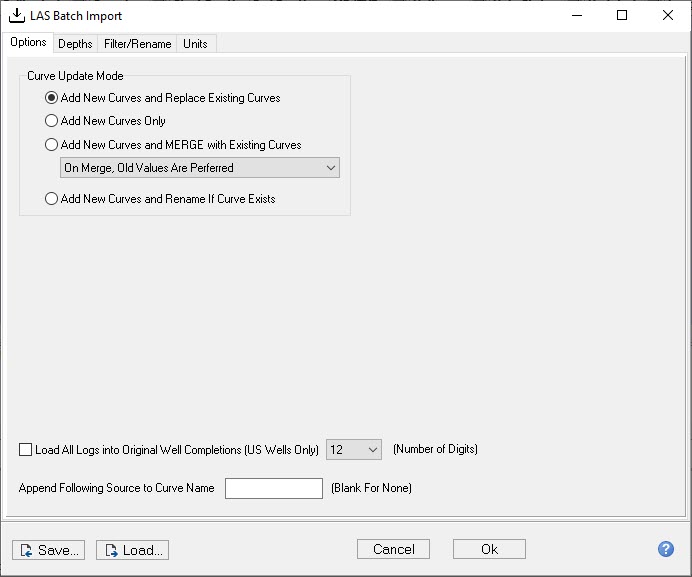
The image below displays the available options for the LAS batch import through Direct Connect. Note that the curves are curated in Direct Connect, so many of the options found in the LAS Batch Import dialog box are not relevant here.
Click on image thumbnail to enlarge, or right click on thumbnail to open in a new tab or window.
|
Curve Update Mode |
These options control how Petra handles naming overlaps between curves already in the project database and the LAS files.
|
|
Load All Logs into Original Well Completions |
By default, Petra loads the curve names into the well that matches the LAS file's API/UWI number. This option instead loads the curves into the primary completion. |
|
Append Following Source to Curve Name |
Appends text to the end of the loaded curves' names. |