
Bulk Log Database (Direct Connect)
Main: Project > Direct Connect > Wells and Production > Bulk Log Database
Project > Import > Digital Logs From... > Digital Logs (Direct Connect)
Project > Import > Raster Logs From... > Raster Logs (Direct Connect)
Select to import data from the Bulk Log Database (Direct Connect) from one of the options above.
After you select the Bulk Log Database option, enter your log on credentials and click OK. The Import S&P Global Well Logs dialog box opens.
Note: Your credentials are saved for when you log on again.
The Bulk Log Database pulls logs from the Rest API/ADM database, the same source as Kingdom and the Well Log Downloader, and has similar search/filter tools .
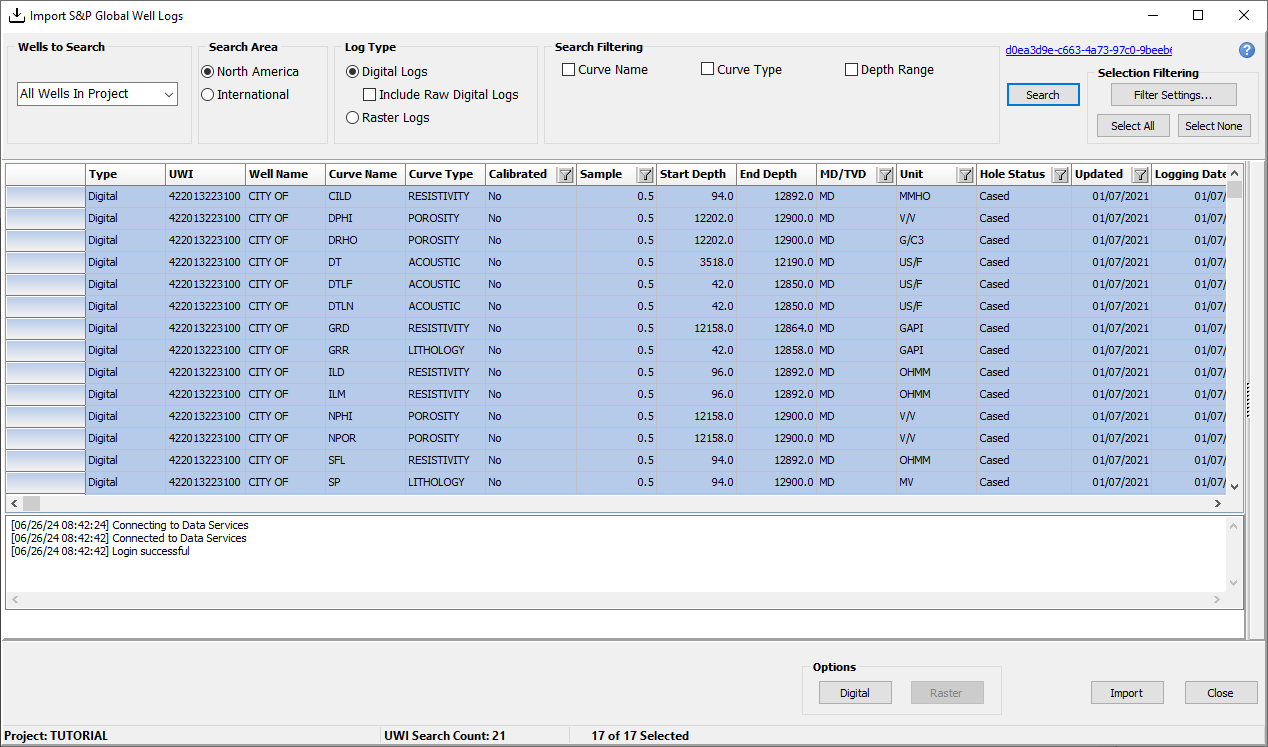
Click on image thumbnail to enlarge, or right click on thumbnail to open in a new tab or window.
To search for well logs:
-
Select the Wells to Search. You can:
-
Select specific wells
-
Select All Wells in Project
-
Browse to a well list file (WSN or UWI). To select multiple files, use the Shift or Ctrl key.
-
Paste a list of UWIs in the Create UWI List dialog which opens when you click the UWI List (via paste) option.
-
Select a dynamic well list in the Dynamic Well List Selection dialog box.
-
-
Select a Search Area: North America or International.
-
Select a Log Type: Digital or Raster. Each is a separate search. For digital logs, you have the option to Include Raw Digital Logs.
-
Select the Search Filtering options. You can filter by curve name, type, and depth range in the ribbon, and by the following in the table itself. Note the filter icon beside the column header.
-
To filter by Curve Name and Curve Type, check the box and select the curve name and type from the relevant drop down selections.
-
To filter by Depth Range, check the box and enter the from/to depth values.
-
The following columns in the Digital and Raster log tables have filtering options denoted by the filter symbol in the column header. Click the filter icon, uncheck Select All, and enter the filter criteria.
Calibrated
Values are Yes, or No.
Sample Rate
Generally in feet.
MD/TVD
Denotes if the depth values are measured in MD or TVD
Unit
Typical well log units include API, GAPI, LBS, V/V, G/C3, µs/ft (US/FT)
Hole Status
Cased, Producing, Shut-in, Abandoned, are some examples
Updated
Date of last update to the log
Logging Date
Date when the log was run
-
Filtering only selects the rows by the specified criteria. Currently the full list remains in the table.
Click Search. The dialog box highlights the rows meeting the search criteria.
-
You can apply additional filtering through Filter Settings on the right. These filters will be applied to your selected list of logs. The default is no additional filters.
-
You can also specify further import options for Digital or Raster logs in the bottom right corner of the dialog box.
-
Digital opens the LAS Batch Import dialog box
-
Raster opens the Batch Import PETRA Log Image Calibration (LIC) Files dialog box
When you have completed setting your parameters, Click Import.